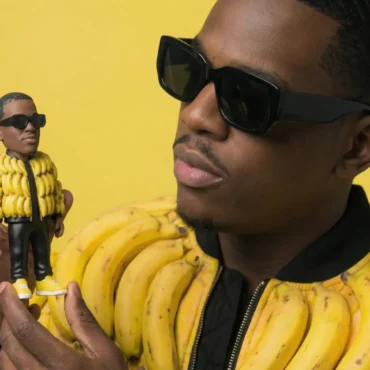
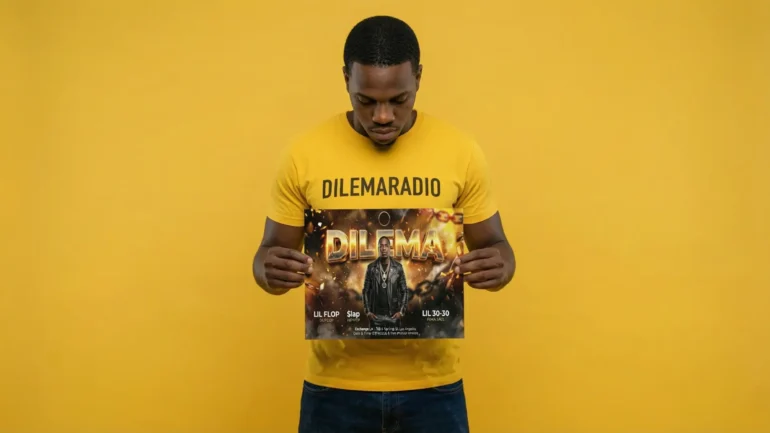
An AI Clone is a computer version of you that looks very real. It helps you be everywhere at once without getting tired. You use it for photos and videos while you sleep. This protects your mind and keeps your fans happy. In this AI Academy tutorial we will show you how to create a clone of yourself with the Artificial Intelligence tool Nano Banana Pro.
The music world moves very fast today. You must post on apps like TikTok and Instagram constantly. This makes many artists feel very tired and stressed. A Digital Clone helps you fix this problem.
Follow these steps to understand your new power:
Stop trying to do everything alone. You are only one person and cannot be everywhere.
Build a Digital Clone to help you. This tool acts as a “force multiplier” for your work.
Separate your real self from your online picture. This keeps your private life safe from the public.
Let your clone handle the small jobs. Your clone creates daily posts and promo photos.
Save your energy (and tons of money) for making music. You focus on writing songs while the clone “works”.
Send your clone to places you cannot go. Your clone can model clothes in Brazil instantly.
Treat your clone like a visual sampler. Hip Hop uses samplers to make new sounds. Use your clone to make new images.
Own your clone as a business asset. This turns you into an owner of intellectual property.
Pro Tip Give your Digital Clone a specific job title, like “Merch Model.” This helps you see it as a helpful tool instead of a creepy copy. It makes using the clone feel like managing a team member.
Table of Contents
What is the Technical Architecture of a Clone?
Nano Banana Pro is a smart computer artist. It does not just guess what you look like. It thinks and plans the picture first. It uses your photos to learn your face exactly. It can also write words clearly and protects your art with a secret code.
Here is how this smart tool builds your digital twin:
Meet the “Thinking” Engine. Old tools just guess where to put dots. Nano Banana Pro thinks before it draws.
Plan the picture like a human. It knows a hand needs five fingers. It plans the scene before adding colors.
Feed the Visual Context Window. You show the tool your real photos. It studies your face like a map.
Lock onto your unique look. It learns your jaw shape and eyes. It remembers exactly who you are.
Write words that people can read. Most AI writes messy and weird scribbles. This tool writes perfect names on shirts.
Put your logo on everything. Your brand looks clear and real.
Protect your art with SynthID. Google puts a hidden mark on your image. You cannot see it, but computers can.
Prove the image is yours. This secret code shows you made it.
Pro Tip Think of the AI like a new art student. If you give it blurry photos, it learns wrong. Give it clear, bright photos so it gets an “A+” in drawing you!
How Do I Build My “Ground Truth” Dataset?
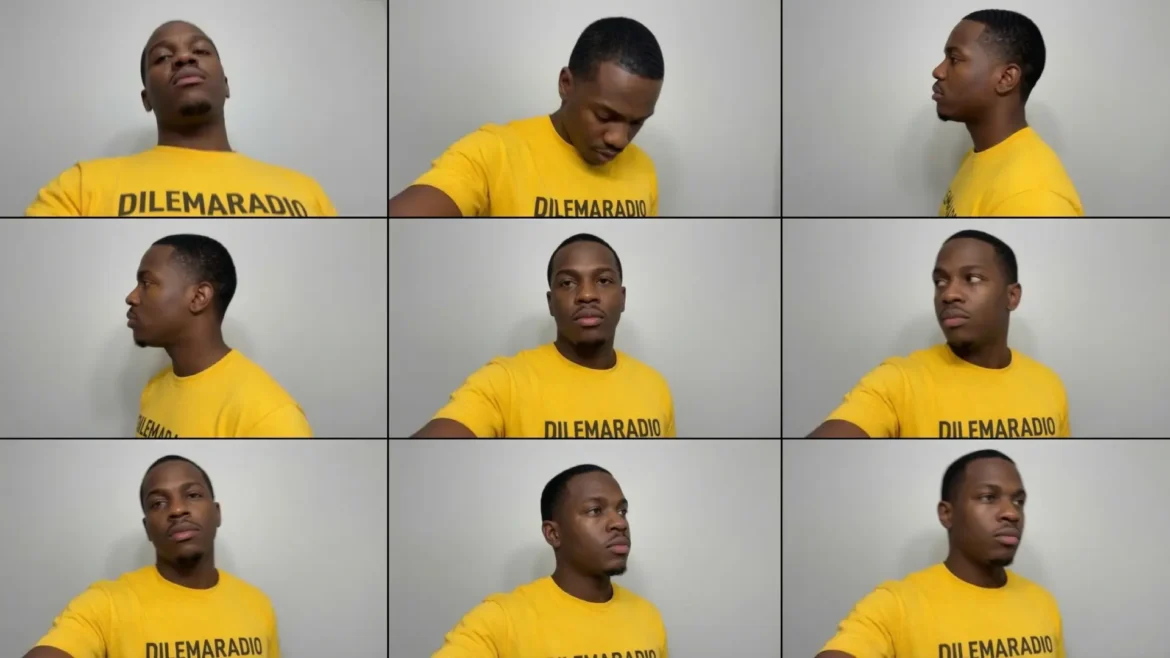
To teach the AI your face, you need a special set of photos. This is called your “Ground Truth.” You must collect nine clear pictures of yourself. These photos act like a school book for the computer to study your look.
Follow these steps to make the perfect photo collection for your clone:
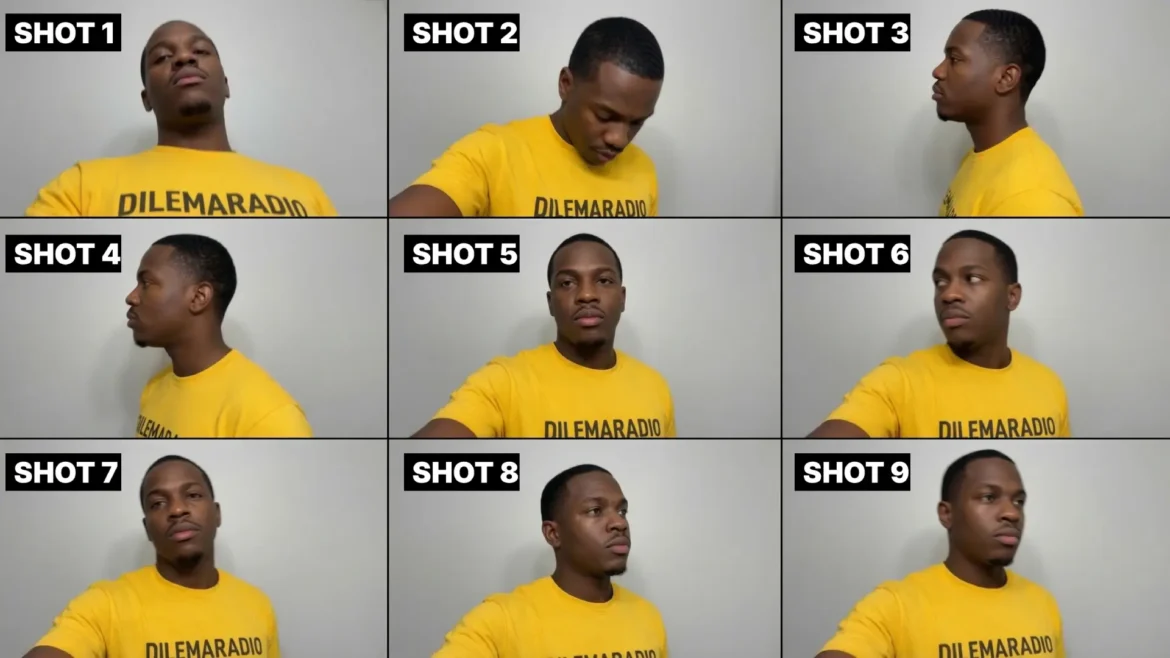
Use this grid as a model for your own photo collection. Notice the clear lighting and different head angles, this is exactly what Nano Banana Pro needs to study your face!
Collect 9 clear photos of yourself. You need enough data for the AI to learn.
Make sure the photos are large and sharp. High quality helps the AI see every detail.
Take photos from many different sides. The computer needs to see your whole head.
Snap a picture looking straight ahead. This is your main “driver’s license” look.
Turn your head to show your profile. Capture your left side and your right side.
Look up at the sky and down at the floor. This helps the AI understand your jaw and chin.
Use bright, flat light without dark shadows. Shadows can confuse the AI about your face shape.
Take off sunglasses and hats. Keep your face clear unless you always wear them.
Show your cool tattoos and jewelry clearly. Make sure your special markings are easy to see.
Pick words that describe your style. Choose words like “vintage” or “urban” to set the mood.
Pro Tip Do not use selfies with filters! Filters change the shape of your nose and eyes. If you give the AI a fake face to start, your clone will look like a stranger. Keep it natural.
Step-by-Step Tutorial: Generating Your Essential Clone Assets
We are ready to build! First, we must get a “Magic Description” of you. We will ask the AI to describe your face perfectly. Then, we will use that description to make new photos. We will create a face chart, cool fashion shots, and movie scenes.
Follow these steps exactly. Do not skip the first step!
The Character Concept Cataloger
Before we make new images, we need the AI to describe exactly what you look like. We call this your Character Concept. You will use this text in every single prompt later.
First, download these 9 example shots to practice with, or use your own:
Upload one of your clear “Front Facing” photos (like Shot 5).
Copy and paste the Concept Cataloger Prompt below.
Hit enter.
Save the text it gives you! This is your “Magic Description.”
Concept Cataloger Prompt:
Act as a dedicated character concept cataloger. Analyze the character in the provided image and output a detailed physical description, strictly ignoring the background, lighting context, and camera angle.

Formatting Rules: Write the response as a single, continuous paragraph. Strictly start the paragraph with the following structure: "a [nationality/ethnicity/age] [gender] with visible subtle skin pores, [detailed hair description], [detailed eye description]..." Continue by describing the facial features, skin texture (independent of lighting), makeup, clothing, and facial expression. Do not mention shadows, light sources, the background, or the photo quality. Ensure the exact phrase "with visible subtle skin pores" is always included immediately after the subject is identified.
Example of what the AI will give you (Save this part!):“a young Black man with visible subtle skin pores, short, tightly coiled very dark brown hair closely cropped to his head, dark brown eyes with darker limbal rings and brown eyelids under dark eyebrows, a defined brow bone, and a broad nose with a rounded tip. He has full lips, a short stubble beard along his chin, and a neutral expression. He is wearing a yellow crew-neck t-shirt with the black text “DILEMARADIO” printed across the chest.”
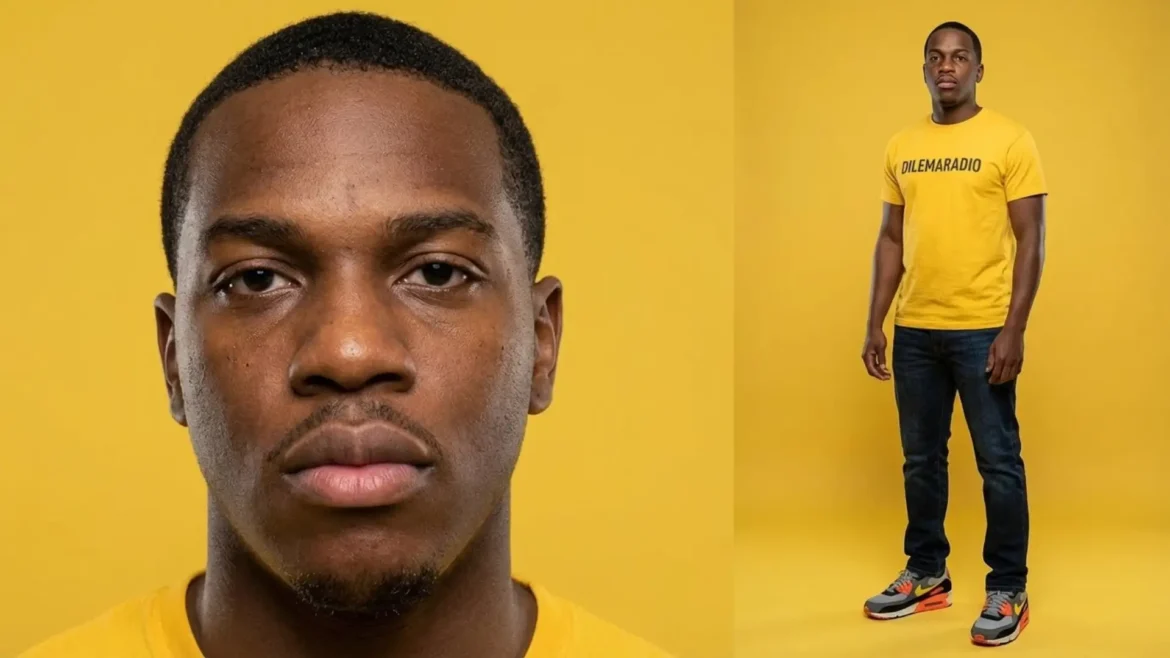
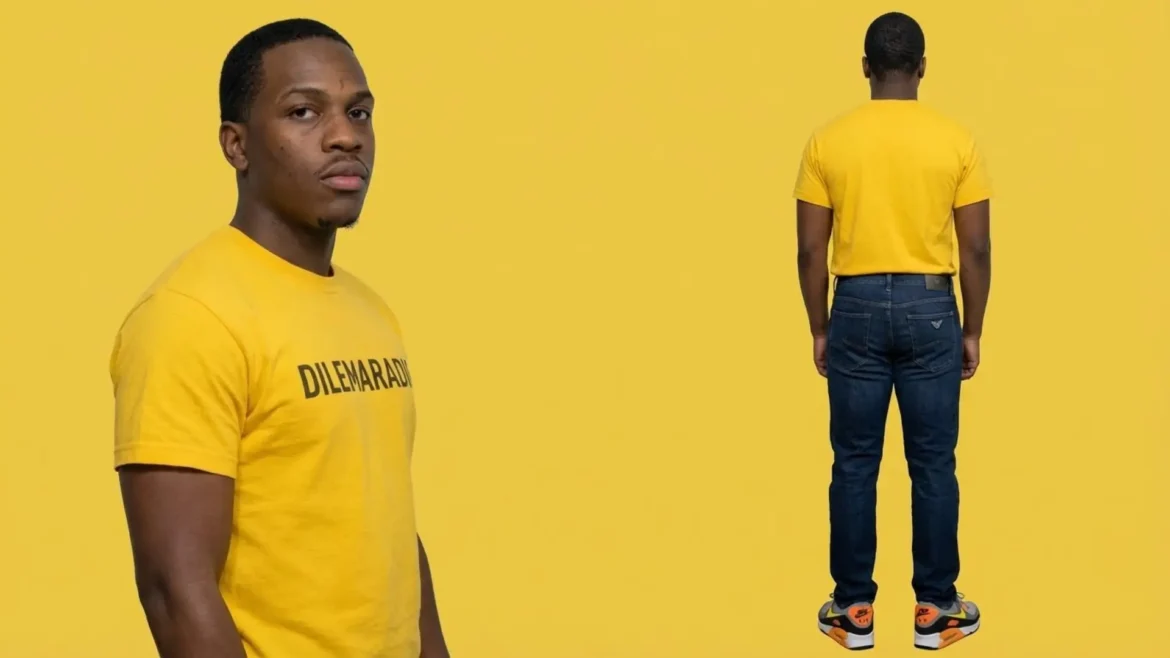
A. Side-by-Side Closeup Face and Full Body
Now we use your “Magic Description” to make a cool fashion shot.
Copy the prompt below.
Paste your “Magic Description” where it says [PASTE YOUR CHARACTER DESCRIPTION HERE].
Describe your outfit on the right side.
Upload shot 5.
Full Text Prompt: "Side by side photo of a closeup face, and full body character design, of [PASTE YOUR CHARACTER DESCRIPTION HERE]. On the left: his expression is blank and intense, open eyes, as if scanning the terrain. On the right: his whole form is framed, he wears [DESCRIBE OUTFIT HERE, e.g., blue jeans, belt, and footwear]. On a flat yellow background, captured in photography style with edge lighting for depth in a 4:3 aspect ratio."
Text prompt with shot 5 as input image: > Side by side photo of a closeup face, and full body character design, of a young Black man with visible subtle skin pores, short, tightly coiled very dark brown hair closely cropped to his head, dark brown eyes with darker limbal rings and brown eyelids under dark eyebrows, a defined brow bone, and a broad nose with a rounded tip. He has full lips, a short stubble beard along his chin, and a neutral expression. He is wearing a yellow crew-neck t-shirt with the black text “DILEMARADIO” printed across the chest.. On the left: his expression is blank and intense, open eyes, as if scanning the terrain. On the right: his whole form is framed, he wears The Emporio Armani J45 Regular Jeans crafted from a comfort-twill denim blend, typically 98% cotton and 2% elastane, which provides a durable yet flexible fit suitable for daily wear. They feature a classic five-pocket design, a zip fly with a branded top button, and a regular cut that offers a straight silhouette from the hip to the hem, finished with the signature metal Eagle logo badge on the rear pocket and a leather waistband patch. Paired with these are the Nike Air Max 90 Trainers, presenting a dynamic multi-colored aesthetic anchored by a breathable grey mesh toe box and collar. The upper is reinforced with black leather or synthetic overlays and a prominent black mudguard, creating a bold backdrop for the vibrant citrus accents; a bright yellow Swoosh sweeps across the side, complemented by “Total Orange” or “Safety Orange” hits on the ribbed heel tab, the “Air Max” side branding window, the lower eyelets, and the cassette surrounding the visible Air cushioning unit in the heel. The design is completed with a padded collar for ankle support, a white foam midsole, and a black rubber Waffle outsole that ensures traction and heritage style. On a flat yellow background, captured in photography style with edge lighting for depth in a 4:3 aspect ratio.
Pro Tip If the AI changes your face, check your description. Make sure it mentions your specific details like “beard” or “freckles” or retry again. When describing his outfit, only describe what you don’t see in the shots. In this case, describe the jeans and shoes as detailed as possible.
B. Three-Quarter Torso and Rear View
This shot shows you from the front and back. It is great for showing logos on the back of shirts.
Upload Side-by-Side Closeup Face and Full Body, shot 3 and 5 images.
Copy the prompt below.
Paste your “Magic Description” into the slot.
This prompt asks for a “Full-Body Rear View.”
Full Text Prompt: "Create Full-Body Frontal and a Full-Body Rear View from this complete character: [PASTE YOUR CHARACTER DESCRIPTION HERE]. Left: Three-Quarter Torso Shot, Body turned ~30 degrees, weight on back leg. Right: Full-Body Rear View, he wears [DESCRIBE OUTFIT HERE, e.g., blue jeans, belt, and footwear]. On a flat yellow background. In 4:3 aspect ratio."
Text prompt with shot 3, shot 5, and Side-by-Side Closeup Face and Full Body as input images: > Create Full-Body Frontal and a Full-Body Rear View from this complete character: a young Black man with visible subtle skin pores, short, tightly coiled very dark brown hair closely cropped to his head, dark brown eyes with darker limbal rings and brown eyelids under dark eyebrows, a defined brow bone, and a broad nose with a rounded tip. He has full lips, a short stubble beard along his chin, and a neutral expression. He is wearing a yellow crew-neck t-shirt with the black text “DILEMARADIO” printed across the chest. Left: Three-Quarter Torso Shot, Body turned ~30 degrees, weight on back leg. Right: Full-Body Rear View, he wears The Emporio Armani J45 Regular Jeans crafted from a comfort-twill denim blend, typically 98% cotton and 2% elastane, which provides a durable yet flexible fit suitable for daily wear. They feature a classic five-pocket design, a zip fly with a branded top button, and a regular cut that offers a straight silhouette from the hip to the hem, finished with the signature metal Eagle logo badge on the rear pocket and a leather waistband patch. Paired with these are the Nike Air Max 90 Trainers, presenting a dynamic multi-colored aesthetic anchored by a breathable grey mesh toe box and collar. The upper is reinforced with black leather or synthetic overlays and a prominent black mudguard, creating a bold backdrop for the vibrant citrus accents; a bright yellow Swoosh sweeps across the side, complemented by “Total Orange” or “Safety Orange” hits on the ribbed heel tab, the “Air Max” side branding window, the lower eyelets, and the cassette surrounding the visible Air cushioning unit in the heel. The design is completed with a padded collar for ankle support, a white foam midsole, and a black rubber Waffle outsole that ensures traction and heritage style. On a flat yellow background. In 4:3 aspect ratio.
Pro Tip The AI might forget your hairstyle in the “Rear View.” If it does, add a short description of your hair to the end of the prompt.
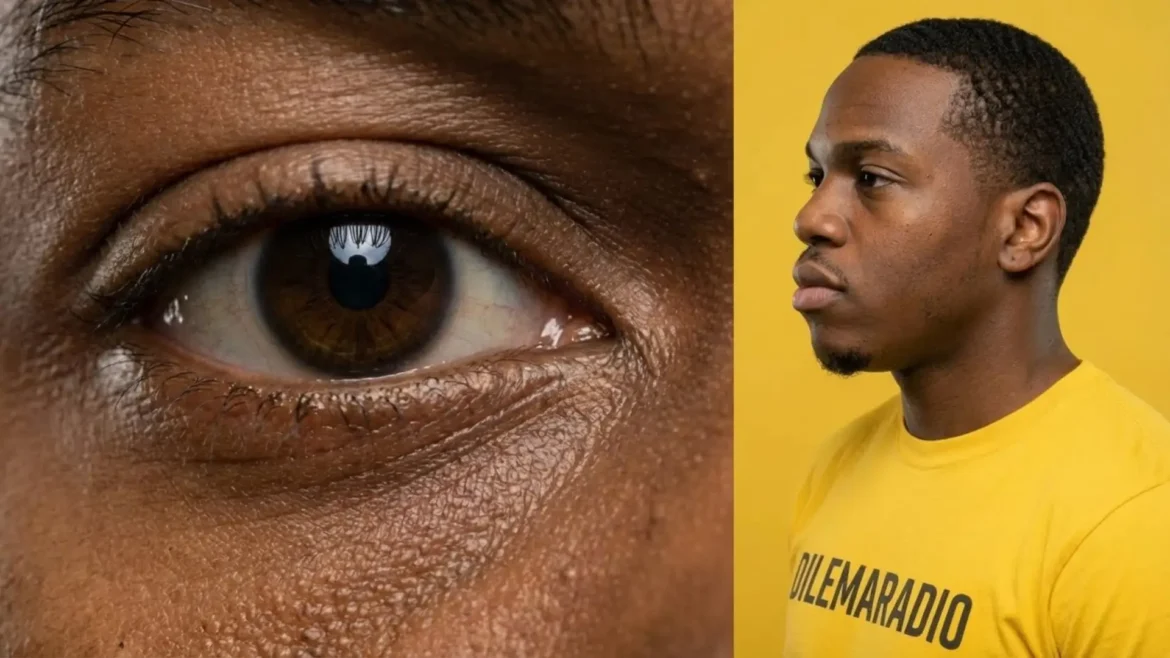
C. Macro Close-Up and Right Profile
This makes a super detailed photo of your eye and a side view of your face.
Upload Side-by-Side Closeup Face and Full Body, Three-Quarter Torso and Rear View, shot 5 and 8 images.
Copy the prompt below.
Paste your “Magic Description” into the slot.
This creates a “Macro” shot (very close) and a “Profile” (side view).
Full Text Prompt: "Create Macro Close-Up and a Right Profile View from this complete character: [PASTE YOUR CHARACTER DESCRIPTION HERE]. Left: Macro Close-Up Portrait: Macro extreme close-up of his right eye, focus tightly on the eye and surrounding facial area, to capture intricate detail of the iris, iris reflection, skin texture, eyelashes. Right: Right Profile View: A medium close-up profile shot of his right side. On a flat yellow background. In 4:3 aspect ratio."
Text prompt with Side-by-Side Closeup Face and Full Body, Three-Quarter Torso and Rear View, shot 5 and 8 as input images: > Create Macro Close-Up and a Right Profile View from this complete character: a young Black man with visible subtle skin pores, short, tightly coiled very dark brown hair closely cropped to his head, dark brown eyes with darker limbal rings and brown eyelids under dark eyebrows, a defined brow bone, and a broad nose with a rounded tip. He has full lips, a short stubble beard along his chin, and a neutral expression. He is wearing a yellow crew-neck t-shirt with the black text “DILEMARADIO” printed across the chest. Left: Macro Close-Up Portrait: Macro extreme close-up of his right eye, focus tightly on the eye and surrounding facial area, to capture intricate detail of the iris, iris reflection, skin texture, eyelashes. Right: Right Profile View: A medium close-up profile shot of his right side. On a flat yellow background. In 4:3 aspect ratio.
Pro Tip Do not use filters! The prompt asks for “skin texture.” This makes you look real and expensive, not fake and plastic.
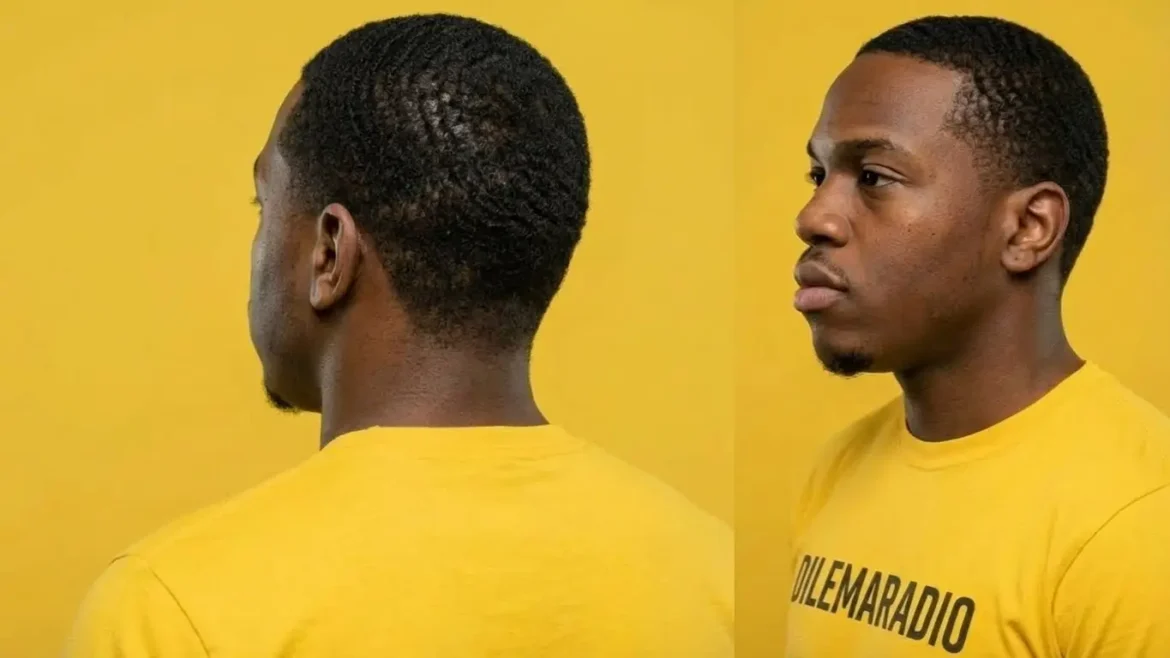
D. Over-the-Shoulder and Left Profile
This looks like a movie scene. It shows the back of your head and a side view.
Upload Side-by-Side Closeup Face and Full Body, Three-Quarter Torso and Rear View, Macro Close-Up and Right Profile, shot 3 images.
Copy the prompt below.
Paste your “Magic Description” into the slot.
This angle shows your neck and shoulder clearly.
Full Text Prompt: "Create Over-the-Shoulder and a Left-side Strict Profile from this complete character: [PASTE YOUR CHARACTER DESCRIPTION HERE]. Left: Over-the-Shoulder: Camera behind subject, 30–45° off axis, head turned 15° toward lens. Shows hair part, neck-to-shoulder transition. Right: Left-side Strict Profile: A medium close-up profile shot of his left side. On a flat yellow background. In 4:3 aspect ratio."
Text prompt: > Create Over-the-Shoulder and a Left-side Strict Profile from this complete character: a young Black man with visible subtle skin pores, short, tightly coiled very dark brown hair closely cropped to his head, dark brown eyes with darker limbal rings and brown eyelids under dark eyebrows, a defined brow bone, and a broad nose with a rounded tip. He has full lips, a short stubble beard along his chin, and a neutral expression. He is wearing a yellow crew-neck t-shirt with the black text “DILEMARADIO” printed across the chest. Left: Over-the-Shoulder: Camera behind subject, 30–45° off axis, head turned 15° toward lens. Shows hair part, neck-to-shoulder transition. Right: Left-side Strict Profile: A medium close-up profile shot of his left side. On a flat yellow background. In 4:3 aspect ratio.
Pro Tip This is perfect for showing off a fresh haircut or earrings because the camera is close to the ear.
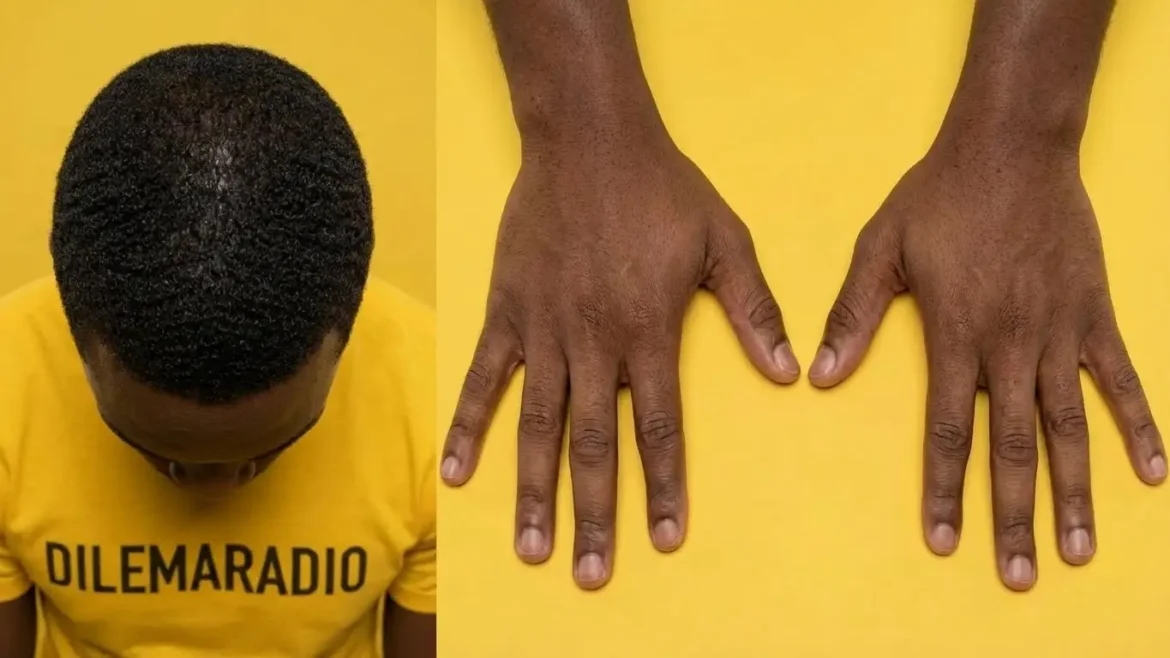
E. Top-Down and Hands
Hands are tricky for computers. We hide the face here to help the AI focus on making perfect fingers.
Upload Side-by-Side Closeup Face and Full Body, Three-Quarter Torso and Rear View, Macro Close-Up and Right Profile, Over-the-Shoulder and Left Profile.
Copy the prompt below.
Paste your “Magic Description” into the slot.
This creates a “Bird’s Eye” view looking down.
Full Text Prompt: "Create Top-Down and Hands & Fingers Close-Up shot from this complete character: [PASTE YOUR CHARACTER DESCRIPTION HERE]. Left: Top-Down (Bird’s Eye): Camera directly above, strictly top of the head centered and top of the shoulders, face not visible. Right: Hands & Fingers Close-Up: Both hands palms down away from the camera, palms down, fingers spread; 100% sharp, palms are not visible. On a flat yellow background. In 4:3 aspect ratio."
Text prompt: > Create Top-Down and Hands & Fingers Close-Up shot from this complete character: a young Black man with visible subtle skin pores, short, tightly coiled very dark brown hair closely cropped to his head, dark brown eyes with darker limbal rings and brown eyelids under dark eyebrows, a defined brow bone, and a broad nose with a rounded tip. He has full lips, a short stubble beard along his chin, and a neutral expression. He is wearing a yellow crew-neck t-shirt with the black text “DILEMARADIO” printed across the chest. Left: Top-Down (Bird’s Eye): Camera directly above, strictly top of the head centered and top of the shoulders, face not visible. Right: Hands & Fingers Close-Up: Both hands palms down away from the camera, palms down, fingers spread; 100% sharp, palms are not visible. On a flat yellow background. In 4:3 aspect ratio.
Pro Tip If you see six fingers, add “no palms” and “anatomically correct hands” to your prompt.
F. Character Expression Sheet
This creates a chart of your face showing different emotions.
Upload Side-by-Side Closeup Face and Full Body and Macro Close-Up and Right Profile images.
Copy the prompt below.
Paste your “Magic Description” into the slot.
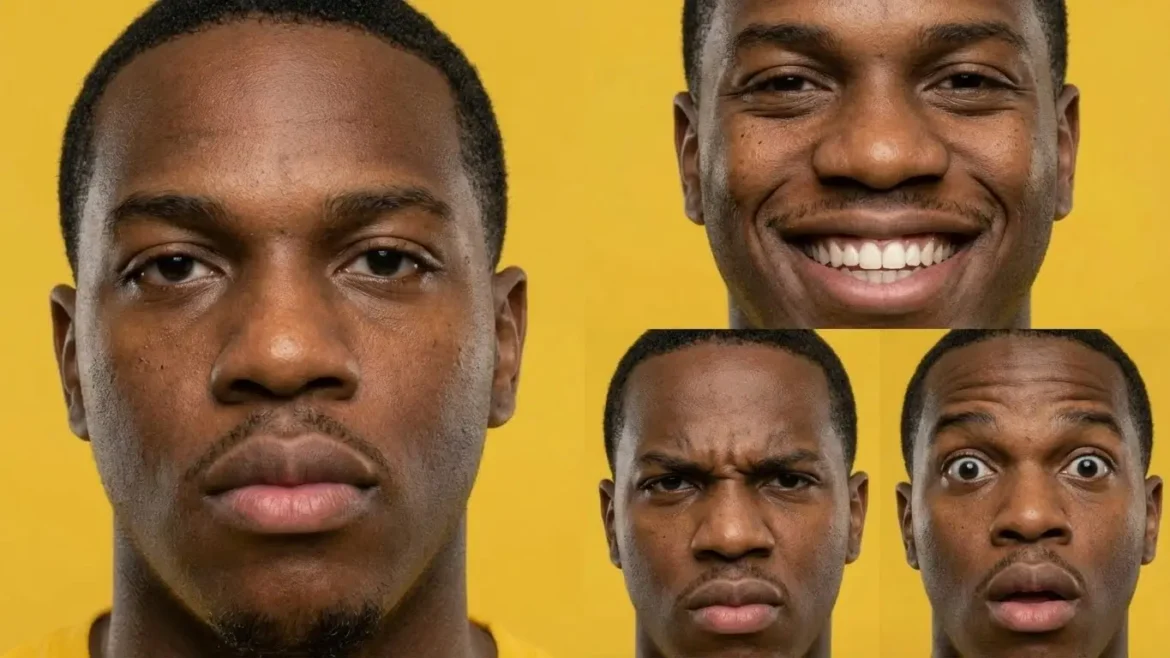
This makes a grid with four faces: Calm, Happy, Angry, and Surprised.
Full Text Prompt: "Character expression sheet for [PASTE YOUR CHARACTER DESCRIPTION HERE], split screen composition divided into four distinct panels. Extreme close-up portraits focusing on the face. Top Left: A neutral, calm expression with soft eyes. Top Right: A wide, joyful smile clearly showing teeth. Bottom Left: An angry, furious expression with furrowed brows. Bottom Right: A surprised, shocked expression with wide eyes. Maintain consistent facial features and lighting across all panels. High fidelity, detailed skin texture. On a flat yellow background. --ar 4:3"
Text prompt: > Character expression sheet for a young Black man with visible subtle skin pores, short, tightly coiled very dark brown hair closely cropped to his head, dark brown eyes with darker limbal rings and brown eyelids under dark eyebrows, a defined brow bone, and a broad nose with a rounded tip. He has full lips, a short stubble beard along his chin, and a neutral expression, split screen composition divided into four distinct panels. Extreme close-up portraits focusing on the face. Top Left: A neutral, calm expression with soft eyes. Top Right: A wide, joyful smile clearly showing teeth. Bottom Left: An angry, furious expression with furrowed brows. Bottom Right: A surprised, shocked expression with wide eyes. Maintain consistent facial features and lighting across all panels. High fidelity, detailed skin texture. On a flat yellow background. –ar 4:3
Pro Tip Leave out details the AI does not need to know to prevent confusion such as details about the yellow details (this includes input images). Why? You want it to create what you want and by adding these details the expression sheet will zoom out from the character to show the t-shirt (or by adding an input image with his fingers) while the goal is to have a focused close up shots of his face. Check the eyes in every box. They should all be the same color. If they change, your clone might look like a stranger!
How Do I Solve Common AI Rendering Errors?
Even smart computers make mistakes. Your clone might have “zombie eyes” or plastic skin. Do not panic! You can fix this by adding special “helper words” to your prompt. These words tell the AI to fix the details. It is like correcting a spelling test.
Here is how to fix the most common mistakes:
Fix “Zombie Eyes” with focus words. Add “intense focus” or “catchlights” to make eyes look alive.
Stop “Plastic Skin” with texture words. Ask for “film grain” and “skin pores” to remove the fake smooth look.
Upload a photo of your ink to fix messy tattoos. The AI needs to see your real tattoo to draw it right.
Use keywords like “black ink script” for clarity. This helps the computer draw sharp lines instead of blurry smudges.
Fix weird hands with counting words. Type “five fingers” and “defined knuckles” to help the AI count.
Tell the AI what not to do. Use the “Negative Prompt” box to list mistakes you hate.
Type “no extra fingers” or “no claws” in that box. This acts like a filter to block bad hands.
Make words stick to clothes properly. Command the AI to “warp text to fabric folds” so it looks real.
Separate jewelry from skin with “contrast.” Use “metallic specularity” to make gold chains shine brightly.
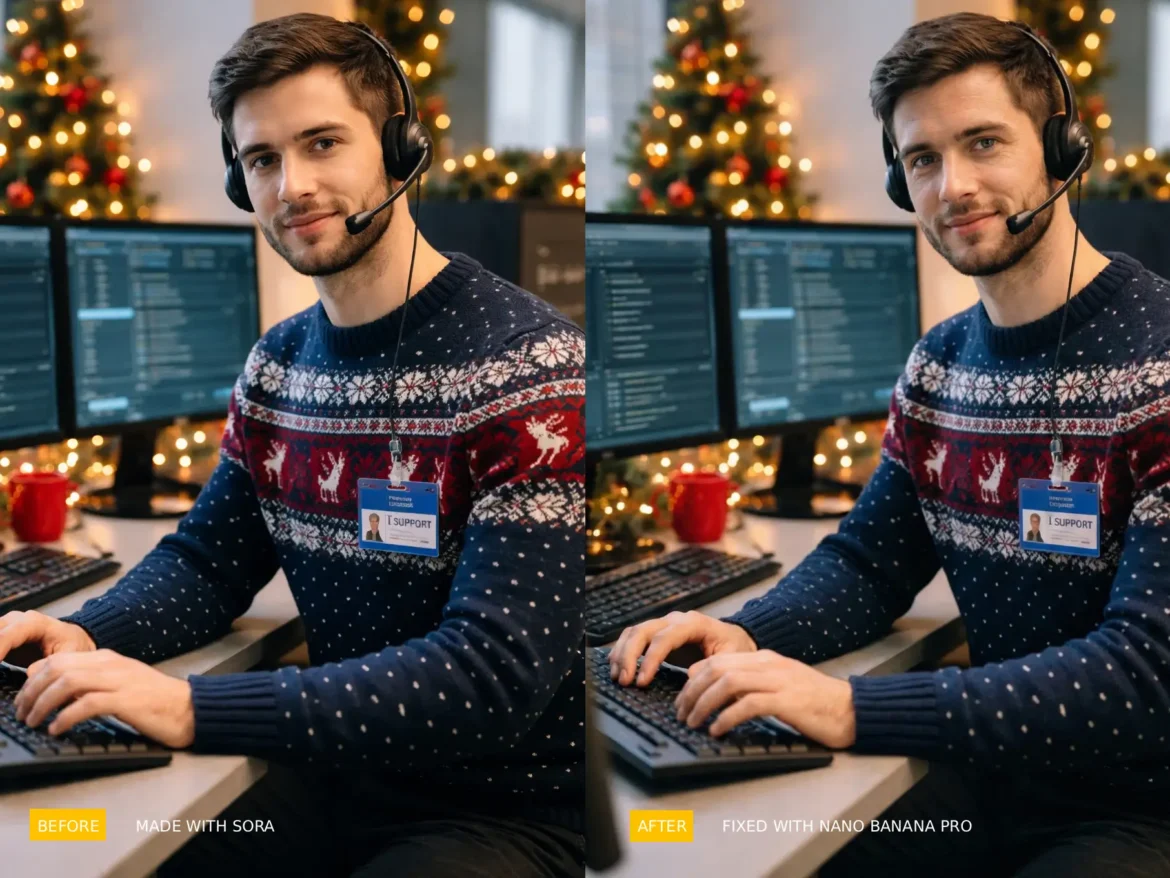
Text prompt: > Strictly based on the uploaded image, remaster the subject into a photorealistic raw photograph. Focus only on fixing textures. Replace plastic skin with visible skin pores, fine wrinkles, and natural imperfections. The eyes must have realistic, sharp catchlights. The sweater fabric must show realistic wool weave. Do not change the facial structure, expression, or pose at all.
Pro Tip If your clone looks too perfect, it looks fake. Humans have bumps and spots. Always tell the AI to show “imperfections.” This makes your character feel real and honest.
Beyond Static Images: How to Move Your Clone?
Your digital clone does not have to stand still forever. You can make it move like a movie star! We use a special video tool called Veo. You feed it your photo, and it turns that picture into a video. Your clone can walk, dance, or wave without losing its face.
Your clone is ready for action! Follow these steps to turn your pictures into movies.
The “Normalization” Prompt (Create a Clean Master)
Upload your Split-Screen image (Side-by-Side Closeup Face and Full Body) to Nano Banana Pro.
Use this prompt to generate a Single full-body image:
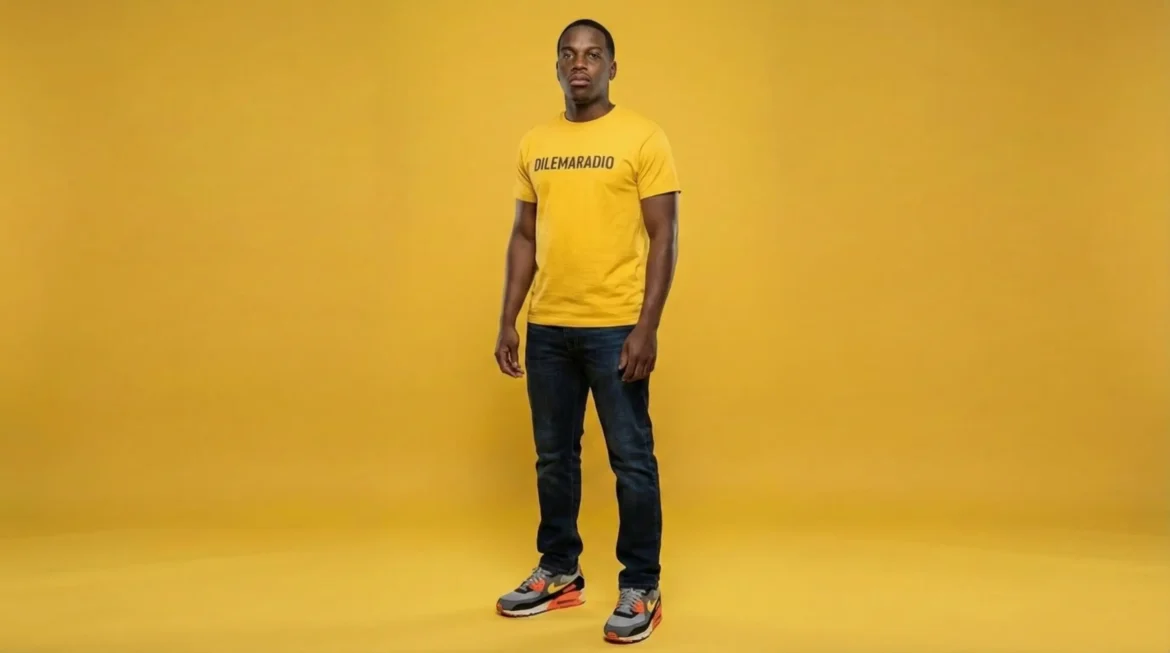
Act as a professional studio photographer. Based on the uploaded reference image, generate a single, centered full-body photograph of the male character in the aspect ratio 16:9. Do not create a split-screen or collage.

Subject: A young Black man with short hair, standing confidently. He is wearing a yellow t-shirt with the black text "DILEMARADIO" on the chest, dark blue denim jeans, and grey/orange sneakers. Background: A seamless, solid yellow studio background that matches the t-shirt. Lighting: Soft, even studio lighting. Constraint: Output exactly one full-body character. No close-ups, no floating heads.

Negative Prompt: split screen, collage, two panels, multiple angles, close up, cropped feet, text overlay, white borders, distorted text.
Text prompt with Side-by-Side Closeup Face and Full Body and Character Expression Sheet images as input images: > Act as a professional studio photographer. Based on the uploaded reference image, generate a single, centered full-body photograph of the male character in the aspect ratio 16:9. Do not create a split-screen or collage. Subject: A young Black man with short hair, standing confidently. He is wearing a yellow t-shirt with the black text “DILEMARADIO” on the chest, dark blue denim jeans, and grey/orange sneakers. Background: A seamless, solid yellow studio background that matches the t-shirt. Lighting: Soft, even studio lighting. Constraint: Output exactly one full-body character. No close-ups, no floating heads. Negative Prompt: split screen, collage, two panels, multiple angles, close up, cropped feet, text overlay, white borders, distorted text.
Pro Tip To be sure to make the face accurate add the Character Expression Sheet image as input image.
The “Frame 1” Magic Technique
This trick uses your photo as the starting point for a video.
Upload your “Normalization” full-body photo. Use the nice “Side-by-Side Closeup Face and Full Body” shot you made earlier.
Open the Veo video tool inside Gemini. This tool works together with Nano Banana Pro.
Upload your photo as the “Frame 1” input. This tells the AI exactly what your character looks like.
Type a motion command in the box. Write something like “Animate character walking forward confidently.”
Tell Veo to “Maintain lighting and outfit.” This keeps your clone from changing into a stranger.
Watch your still photo turn into a video. The AI extends the picture into a moving clip.
Download your clip for TikTok or YouTube. You now have a video without filming anything!
Text prompt with Side-by-Side Closeup Face and Full Body and Character Expression Sheet images as input images: > Animate the character in the input image to walk forward towards the camera with a relaxed, confident stride. The character must maintain the exact facial identity, the yellow “DILEMARADIO” t-shirt, blue jeans, and sneakers. The solid yellow background should remain consistent and stable.
The Virtual Wardrobe
Do you want a new outfit without a new photoshoot? Use this trick.
Go back to your Gemini chat.
Select the clone image you want to change.
Type “Virtual Change Clothes” in the prompt.
Command: “Keep face and body exactly the same.”
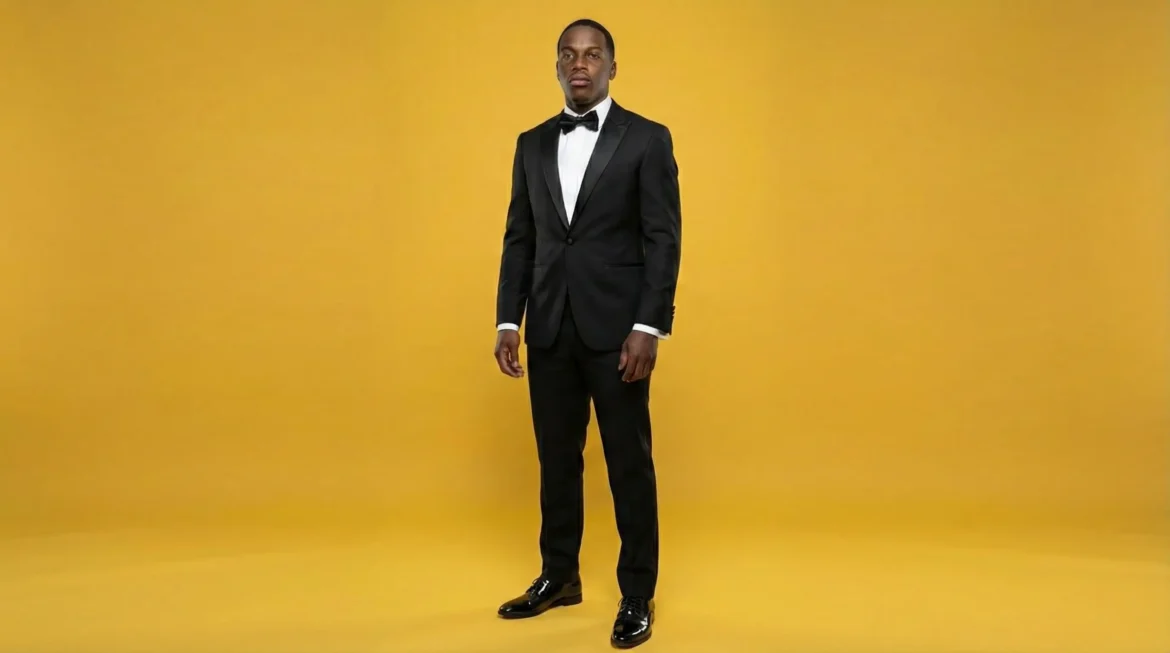
Say “Replace outfit with a tuxedo.” You can pick any clothes you want.
Hit enter and wait for the magic. Your clone wears the new clothes instantly.
Save this new look for your next campaign. You build a whole closet of digital clothes!
Text prompt with Side-by-Side Closeup Face and Full Body and and Character Expression Sheetas input images: > Based on the input image, keep the subject’s facial features, physique, standing pose, and the yellow background exactly the same. Change only his clothing. Replace the yellow t-shirt and jeans with a sharp black tuxedo suit, a white dress shirt, and a black bow tie. Ensure the lighting remains soft and even.Text prompt in Flow: > Animate the character in the input image standing in place. He makes subtle dance moves like he is feeling a hip hop beat with swag. Include rhythmic head bobs, shoulder sways, and small hand gestures. He does not walk. Maintain the exact facial identity, the black tuxedo, and the solid yellow background. The camera remains fixed. Aspect ratio 16:9
Pro Tip Watch the logos on your clone’s shirt when it moves. The “Reasoning Engine” is very smart. If your shirt has text, the words will move and wrinkle just like real fabric!
Mastering Your Digital Legacy
You are now the boss of your own digital future. A Digital Clone is not just a cool toy. It is a powerful tool that helps you work smarter, not harder. You own this art, and it will keep your story alive for a very long time.
You have learned powerful skills today. Now you must use them wisely to build your future.
Follow these final rules to stay in control:
Own your new power. You moved from just working to owning a digital partner.
Treat your clone like a business. It can model clothes or be in games while you sleep.
Protect your name and face. Always use the hidden watermarks to show it is really you.
Keep building your library. Save your best prompts and pictures for the future.
Stay the boss of your art. You decide what your clone does and says.
Look at the big picture. Your clone helps you leave a mark that lasts forever.
Pro Tip Save your “Clone Assets” photos (the photos with the split screens) in a safe place like a hard drive. Computers change, but those original photos are gold. If you lose them, you have to start all over again!
FAQ (Frequently Asked Questions)
Is using a Digital Clone “cheating” or “fake”?
No. Think of your clone like a music sampler. Hip Hop artists use samplers to make new beats from old sounds. Your clone is just a “visual sampler.” It helps you make more art without burning out.
How do I stop people from stealing my face?
Google puts a secret mark called SynthID on your images. You cannot see it, but computers can. This proves the image belongs to you. It protects you from “deepfakes” or people trying to trick your fans.
Can I make money with my clone?
Yes! Your clone is a business asset. You can use it to model t-shirts for your store to music videos. You can even rent it out to be a character in video games. It works while you sleep.
What if my clone has six fingers or looks weird?
This happens sometimes. Use the Negative Prompt box. Type things like “extra fingers” or “plastic skin.” This tells the AI what not to draw. Also, try the “Texture Swap” trick we learned in “How Do I Solve Common AI Rendering Errors”.
Do I need a fancy camera for my reference photos?
No (modern phones make excellent photos). You just need good light. Use a lamp or stand near a window (natural light is better). Do not use dark or blurry photos. Also, do not use filters! Filters confuse the AI. It needs to see your real face to draw you correctly.
Nano Banana Pro is a powerful tool that turns your words into high-quality art. Just as the MPC sampler let producers make beats easily, this tool lets you create professional album covers and posters. It uses a "thinking" process to ensure your designs look perfect and your text is spelled correctly. The world of hip hop is changing again. In the past, you needed expensive cameras and designers for your […]