Nano Banana Pro is special because it thinks before it paints. Old robots just guessed and made messy pictures. This one plans your flyer first. It also knows how to spell words correctly. This makes your posters look real and professional.
We already covered the easy stuff in our Nano Banana Basics guide. Now, let’s see why this tool changes the game for flyers.
The “Thinking” Artist
Most AI tools act like a painter wearing a blindfold. They throw paint at the canvas. They hope it looks good. They are just guessing.
Nano Banana Pro is different. It does not guess. It thinks.
Imagine a smart artist. It makes a plan in its head first. It decides where the rapper goes. It decides where the title sits. It builds the picture like a house.
No More Messy Words
Have you tried to put text on AI art before? It usually looks like alien scribbles. We call this “gibberish”.
Old tools treated letters like shapes. They did not know “A” from “B.” They just drew random lines.
Nano Banana Pro is smart. It can read and write. It understands spelling. It knows “Friday” has six letters. It puts them in the right order.
This is the secret weapon. Now your flyer tells people where the show is. You do not need to fix the words later. The robot gets it right.
Pro Tip: Treat the AI like a person. If it spells a word wrong, do not delete the image. Just type, “You spelled that wrong. Please fix it.” It will listen and correct the mistake!
The Core Technique: “The Container Method”
Words cannot float in empty space. If you ask for floating text, it looks like melting soup. You must give words a solid home. We call this a “Container.” Always tell the AI to write on a sign, a wall, or a screen.
Most people make one big mistake. They ask the AI to “write text.” The robot gets confused. It tries to paint letters in the air. They come out wavy and weird.
You must use the Container Method. A container is a real object. It holds your words. It follows the rules of physics.
How to Use the Container Method
Prompt template: > A [INSERT CONTAINER OBJECT] reading ‘[INSERT YOUR TEXT]‘. The object is placed in [INSERT BACKGROUND LOCATION]. The image has a [INSERT MOOD/STYLE] aesthetic with [INSERT LIGHTING].
Pick a mood for your flyer.
Choose a solid object to hold text.
We call this object your “Container.”
Open the Gemini app on your phone.
Type the description of your container first.
For example, type “a glowing neon sign.”
Add your specific words inside quote marks.
Write: reading ‘LIVE SHOW TONIGHT’.
Describe the background behind the container.
Press the generate button and wait.
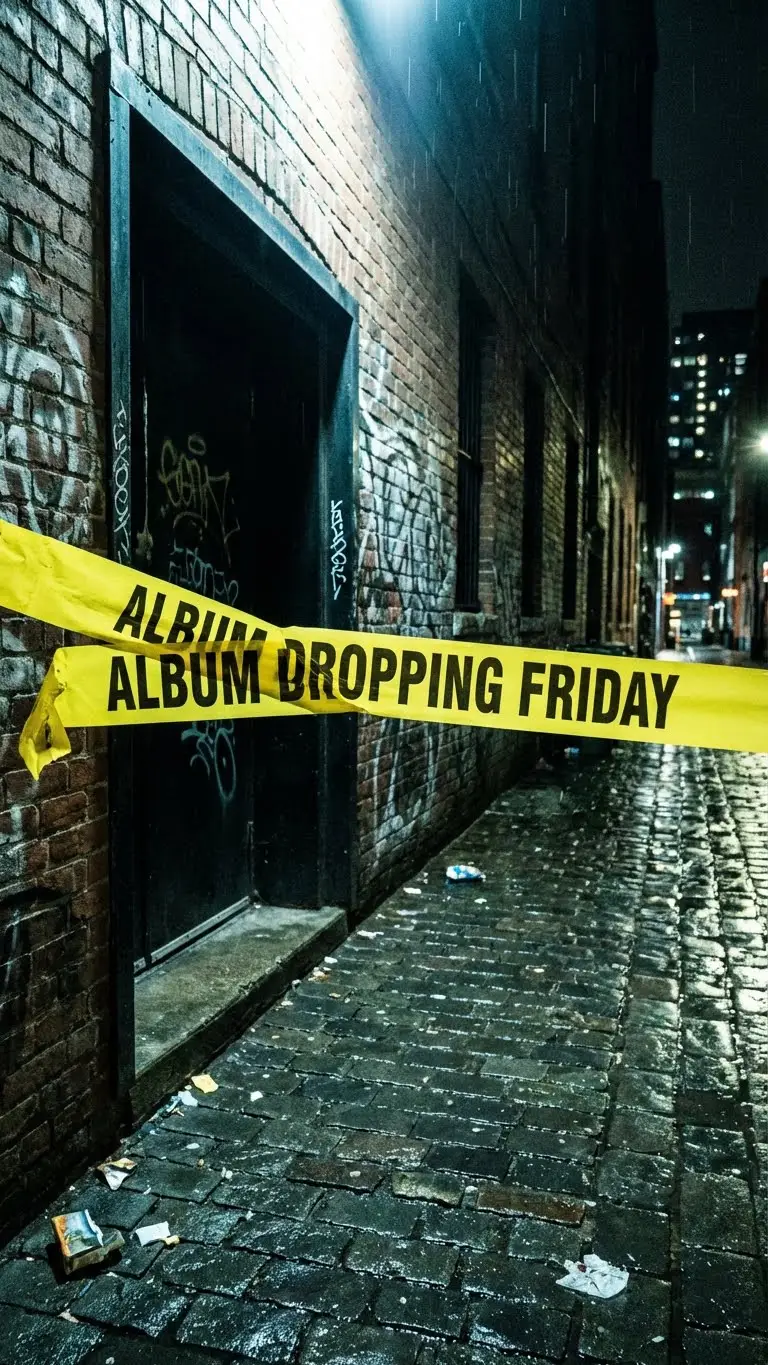
Text prompt: > A roll of yellow caution tape stretched across a dark doorway reading ‘ALBUM DROPPING FRIDAY’. The background is a gritty brick alleyway at night with wet pavement reflections. The image has a raw, flash-photography aesthetic with high contrast and realistic textures.
Text prompt: > A raw, flash-photography style flyer generated in Gemini using the “Container Method.” The text ‘ALBUM DROPPING FRIDAY’ is rendered perfectly on the surface of the caution tape, solving the common AI spelling issue.
Pro Tip: Match the container to your music style. If you make Drill music, use a “caution tape” container. If you make Trap music, use a “digital screen” container. This tells the AI exactly what “vibe” to paint.
Speaking the “Dialect”: Aesthetic Keywords
To get the best flyers, you must speak the robot’s language. We call this the “Dialect.” Don’t just say “cool.” Use special words like “Thermal” for Trap or “CCTV” for Drill. These magic words unlock the right style immediately.
Gemini is smart, but it does not know slang. If you say “make it hard,” it gets confused. You must use specific “Style Words.” These words act like keys that unlock different art styles.
Follow this list to find your perfect look:
Prompt template: > A [INSERT SUBJECT] holding a [INSERT CONTAINER] reading ‘[INSERT TEXT]‘. The image uses the [INSERT STYLE NAME] dialect. Key visual details: [INSERT KEYWORDS FROM LIST].
Pick your music genre from the list below.
For Trap Music: Type “Thermal vision” or “Liquid chrome.”
This makes the image look shiny and wild.
For Drill Music: Type “CCTV footage” or “Night vision.”
This makes the image look dark and gritty.
For Old School: Ask for “Fish-eye lens” or “Film grain.”
This gives it a classic 90s camera look.
For Chill Beats: Use “Anime style” or “Rainy window.”
Add these words to the very end of your prompt.
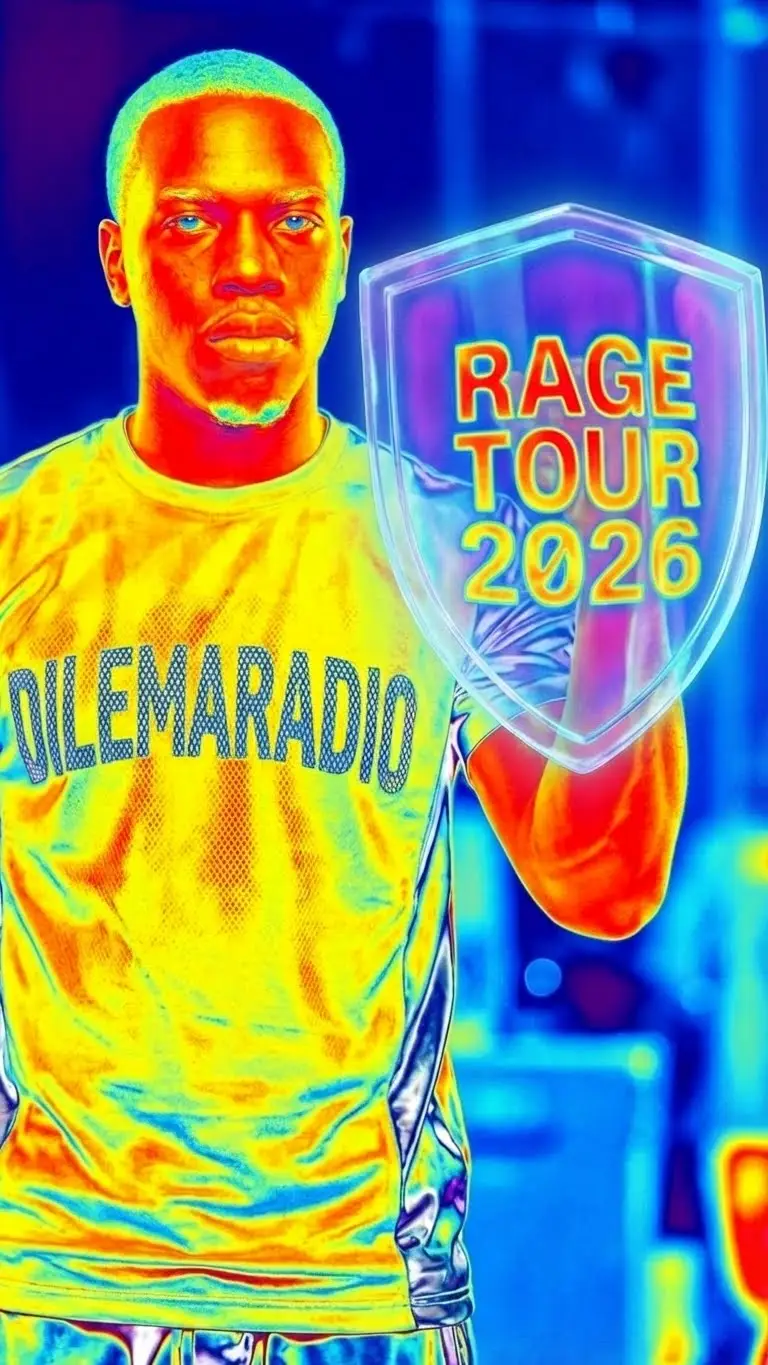
Text prompt: > A futuristic cyborg rapper performing on stage holding a holographic shield (Container) reading ‘RAGE TOUR 2025’. The image has a Trap aesthetic using Thermal Vision style with bright heat map colors (red, blue, yellow). The textures look like Liquid Chrome and Distorted Mesh.
Text prompt with AI clone as character: > A high-energy Trap flyer generated in Gemini using specific “Dialect” keywords like Thermal Vision and Liquid Chrome. The holographic container ensures the text ‘RAGE TOUR 2025’ is perfectly legible despite the chaotic visual style.
Pro Tip: Don’t mix too many styles at once. If you ask for “Anime” AND “Realistic CCTV,” the robot will get dizzy. Pick one lane and stay in it for the best results.
The Construction: Step-by-Step Workflow
Building a flyer is like making a sandwich. First, pick the shape (square or tall). Second, use our special formula to tell the AI what to draw. Third, fix small mistakes by talking to it. Follow these steps to finish your poster in minutes.
Step 1: The Setup (Choosing the Shape)
Before you start, you must decide where this flyer goes.
Think about where you will post this.
For Instagram Posts, you need a square shape.
We call this a 1:1 ratio.
For Stories or TikTok, you need a tall shape.
We call this a 9:16 ratio.
Open the Gemini app on your phone.
Start your prompt with specific words.
Try This Prompt:
For Instagram: “Create a square image of a hip hop concert…”
For TikTok: “Create a tall 9:16 image of a hip hop concert…”
Step 2: The “Fill-in-the-Blank” Formula
You do not need to be a writer. Just use this magic recipe.
Try This Example: “A robot rapper holding a mic in a neon club. A massive screen behind him reads ‘LIVE SHOW’. Use Thermal Vision colors.”
Step 3: Fixing Mistakes (The “Repair” Step)
Sometimes the robot makes a small mistake. This is normal.
Look closely at your new image.
Did it spell the date wrong?
Did it use the wrong colors?
Do not start over from scratch.
Just reply like you are texting a friend.
The robot will keep the good parts and fix the bad parts.
Try These Repair Prompts:
If the spelling is wrong: “Fix the sign to spell ‘FRIDAY’ correctly.”
If the text is blurry: “Make the text on the sign bigger and clearer.”
If the color is wrong: “Change the neon lights to green.”
Pro Tip: Always make your “Container” (the sign or wall) very big. If the sign is too small, the letters will get blurry. Tell the AI to make the text object “huge” or “massive” so the words are easy to read.
Distribution & Legal Strategy
You want fans to see your flyer. You also want to own your art. Use the “Sandwich Method” to make the design yours. This means adding your own logos and edits. Also, write “Alt Text” so Google can find your image.
The “Zero-Click” Search Strategy
You made a cool flyer. Now you need fans to find it. Google cannot “see” pictures like humans do. You must help it read your image.
Post your flyer on Instagram or a website.
Look for the “Alt Text” option.
This stands for “Alternative Text.”
Type a clear description of your image.
Write: “Trap music concert flyer for [Your Name].”
Include the city and the date.
Now Google knows exactly what your picture is.
This helps your flyer show up in search results.
The Secret Watermark (SynthID)
Gemini puts a secret code inside every image. You cannot see it with your eyes.
Raw AI art belongs to everyone. You cannot own a simple button press. To own your flyer, you must add human work. We call this the Sandwich Method.
The Bottom Bun: Generate your base image in Gemini.
The Meat: Open the image in a photo editor.
Add your own logo.
Change the colors slightly.
Add extra stickers or filters.
The Top Bun: Save this new mixed version.
Now the art is unique to you.
This mix creates a real copyright claim.
Pro Tip: Save your prompts in a note app on your phone. This is your “sketchbook.” If anyone asks if you stole the art, show them your prompt. It proves you are the Director who created the idea.
Bonus Tip: Remix a Design You Like
See a flyer you love? Don’t copy it. Remix it. Show Gemini the picture. It will study the colors and style. Then it builds a new version with your face and info.
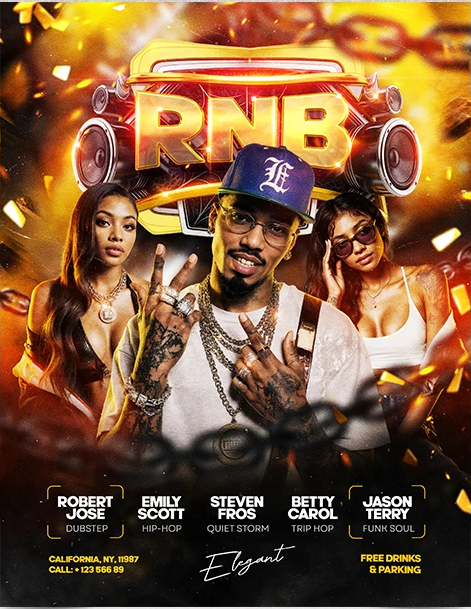
Sometimes you see a flyer that is perfect. You want that exact vibe. You can ask Gemini to “read” that flyer and rebuild it for you.
Follow this simple recipe to remix any design.
Step 1: The “Senior Designer” Prompt
Copy and paste this special instruction. It turns Gemini into a pro designer.
Copy This Prompt:
Act as a professional Senior Graphic Designer with expertise in high-conversion flyer marketing. Your goal is to create 100% simular version of the attached reference image using the “Nano Banana Pro” workflow.

Please follow this strict three-step process:

Step 1: Deep Analysis Examine the attached flyer image in detail. Break down the following elements in your analysis:

Color Palette: Identify the dominant, accent, and background colors.
Typography: Analyze the font styles (serif, sans-serif, script), hierarchy, and readability.
Composition: Evaluate the layout, whitespace usage, and focal points.
Mood & Theme: Describe the emotional tone (e.g., energetic, corporate, festive, mysterious).
Imagery: Note the style of characters, icons, or background textures used.
Step 2: Client Consultation Pause the design process here. Ask me a series of specific questions to personalize this design for my needs. These questions should clarify:

The specific text/content I need on the flyer (headlines, dates, location).
Any specific color preferences or branding guidelines I want to swap in.
The target audience for my version of the flyer.
Any flaws in the original design I want to fix or improve.
Step 3: Execution with Nano Banana Pro Once I provide the answers to your questions, proceed to generate the new image. Use your image generation capabilities to create a high-resolution flyer that retains the soul of the original but upgrades it with professional polish and my specific requirements. Ensure the final result is visually stunning and ready for print or digital distribution.
Step 2: The Conversation
Gemini will stop and ask you for the picture. It will say: “Please upload the reference image… Once the visual data is available, I will immediately proceed.”
Click the + button to upload the flyer you like.
Gemini will study the colors and fonts.
It will ask: “What text do you want on this?”
I uploaded this flyer.
Step 3: Your Turn (The Remix)
Now, answer the questions. You can even upload photos of yourself (your Digital Clone) to replace the original person.
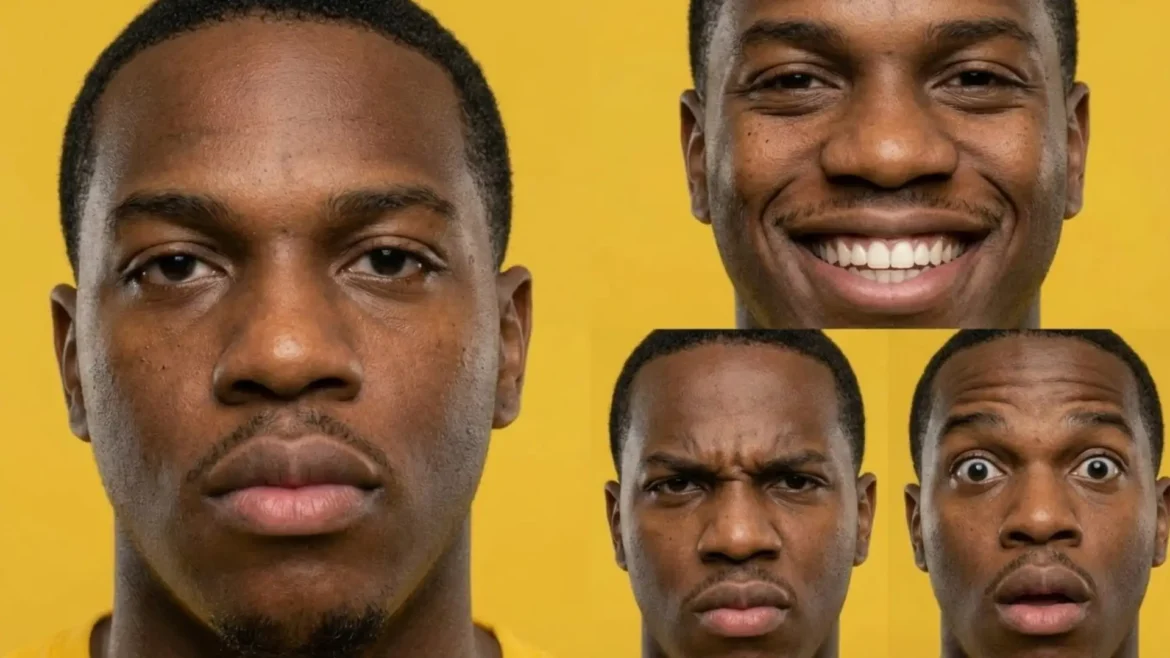
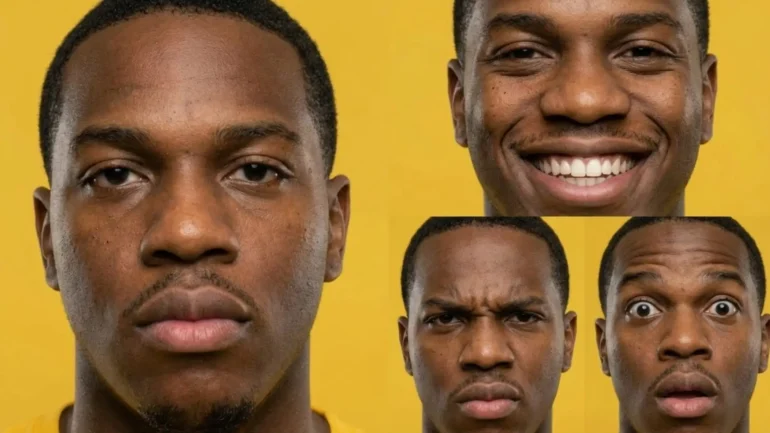
A visual breakdown of the Digital Clone Protocol, featuring the “Ground Truth” data capture and AI transformation.
Here is an example of what I answered:
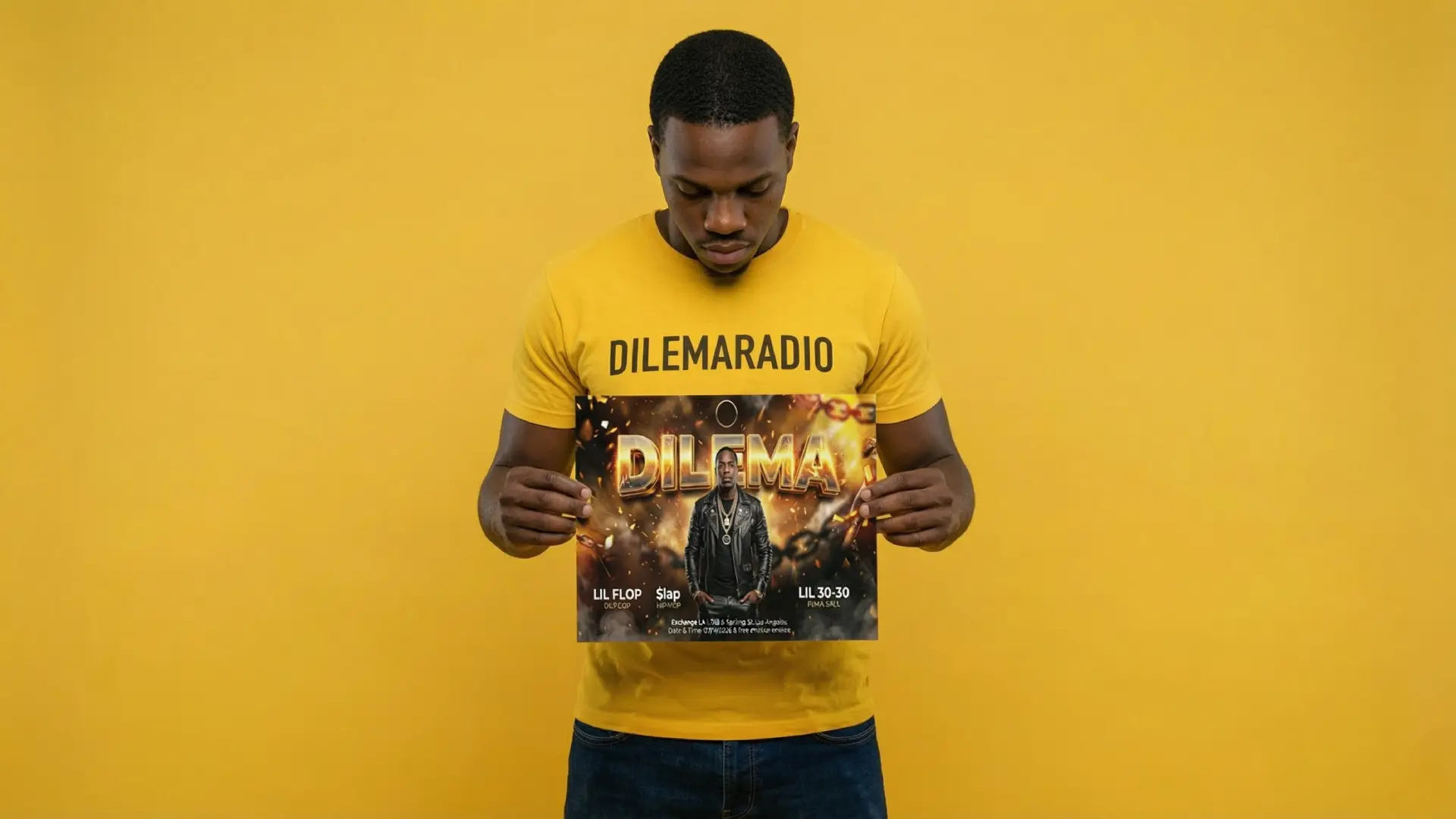
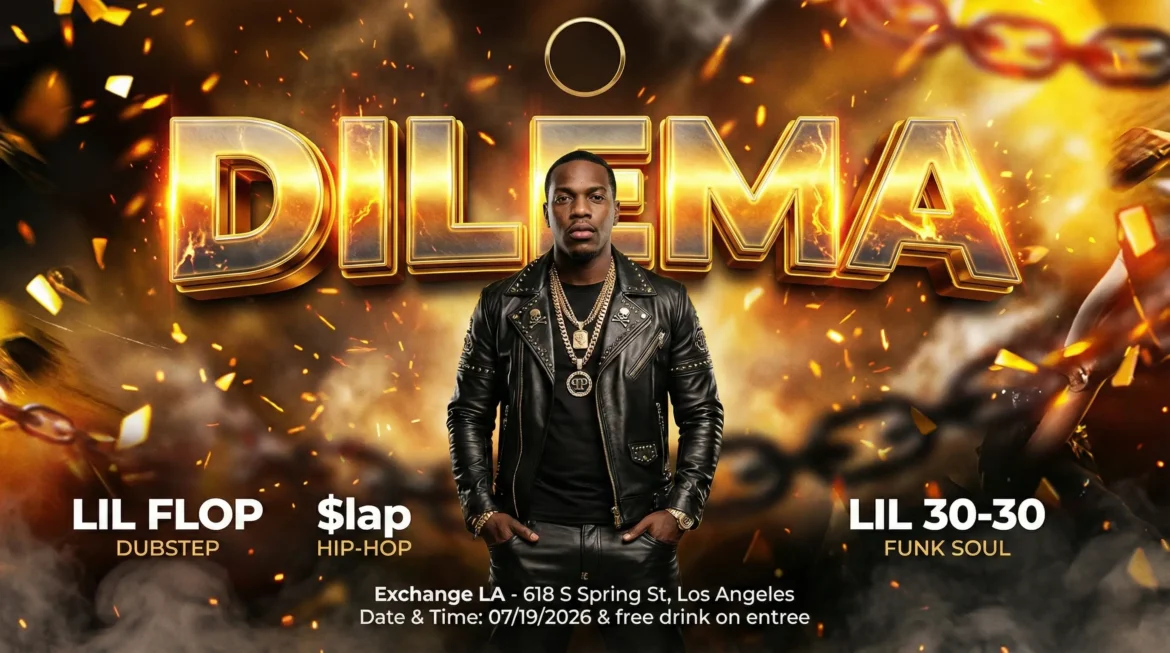
1. Name: DILEMA 2. The Look: Leave out everyone and add me in the center wearing philipp plein leather outfit. (I am uploading my files: “Character Expression Sheet.jpeg”, “Macro Close-Up.jpeg”, “Top-Down and Hands.jpeg”). 3. Lineup: LIL FLOP, $lap, LIL 30-30 4. Location: Exchange LA – 618 S Spring St, Los Angeles 5. Offer: Date: 07/19/2026 & free drink on entree 6. Style: Maintain the Molten Gold/Fire palette. 7. Layout: Create empty placeholder i can add later on myself.
Gemini will take the “Soul” of the old flyer. It mixes in your new info. You get a perfect remix in seconds.
A professional “Remix” generated using the Senior Designer Prompt in Gemini. The AI analyzed a reference flyer and reconstructed it with the user’s specific branding (DILEMA), a new Molten Gold/Fire palette, and a custom lineup. This demonstrates the model’s ability to retain the “soul” of an original layout while completely customizing the text and imagery.
Conclusion & Next Steps
You are now a Design Director. You know how to use the Container Method. You can make professional flyers for free. Do not stop here. You can build a whole visual brand with these tools.
You have graduated. You understand how the “Reasoning Engine” works. You know the secret code to make text look real.
Your flyers will stand out on Instagram. Fans will think you hired a pro designer. You did this all by yourself.
What Should You Do Next?
Right now, your flyer might have a cool robot or character on it. That is great. But we can make it better.
Put Yourself in the Art: You want fans to see your face. You need a “Digital Clone.”
Pro Tip: Save your best prompt in your notes. When you have a new show, just change the city name. Keep the style the same. This makes your Instagram look tidy and professional.
Frequently Asked Questions (FAQ)
Is Nano Banana Pro really free?
Yes! It lives inside the Google Gemini app. You can download it on your iPhone or Android. You can make flyers for free right now.
Why do my words look like melting soup?
You probably forgot the Container. Remember, words cannot float in the air. They need a home. Tell the robot to write on a sign, a wall, or a shirt.
Can I use these flyers to sell tickets for my show?
Yes! You can post them on Instagram, print them out, or put them on your website. Use the Sandwich Method (adding your own logo and edits) to make sure the final design is unique to you.
How do I put my actual face on the flyer?
Good question! You need to make a “Digital Clone” first. This teaches the robot what you look like so you don’t have to use a fake character. Read our guide here:Make a Digital Clone of Yourself.
Why does my picture look too shiny and fake?
You might have the “Plastic Look.” To fix this, add “texture words” to your prompt. Try adding “Film Grain,” “Dusty,” or “CCTV footage” to make it look real and gritty.
I made a square image, but I need it tall for Stories. Do I start over?
No! Just tell Gemini: “Remake this exact image but make it tall (9:16 aspect ratio).” It will expand (outpaint) the background for you.
Create album covers with Nano Banana Pro in the Gemini App. Make professional music art with your photos today. Making art is fun and easy now. You do not need expensive tools or big computers. Meet Nano Banana Pro inside the Gemini App. It uses a special brain to think. Most computer tools draw very fast. They make mistakes because they rush. But this tool is different. It takes a […]